The DreamList guide · for list makers, families & organizers
How to do everything on DreamList
Wish lists, registries, family groups and gift drives, one step at a time. Every button named here is the one you'll see on the site.
Giving a gift instead? The giver guide is much shorter. Givers barely have to do anything, and we like it that way.

Wish for anything
Things from any store, cash toward big dreams, help, activities and causes.

Share one link
Every list gets its own address: www.dreamlist.com/for/yourname.

Group lists together
Family groups, angel trees and gift drives on one page.

We do the heavy lifting
Registry imports, bulk changes and organization pages: just email us.
Step 1
Create your account
- Click Sign up at the top of any page.
- Enter your email, first name, last name and a password, then click Create a new account. (Creating an account confirms you're over 13.)
- Open the welcome email from DreamList and click the link to validate your email.
We start you off with a list called Private Wishlist that only you can see. Use it as a scratch pad, rename it, or make it your first real list.
It's the one email from us you really have to open. (We hope you'll open the others too.)
Step 2
Make a list
- On your Dashboard, click + Add a new list.
- Give it a Title and a Call to action / Description: the short story you'd like givers to read first.
- Add an image and, if you like, a Background Image for the top of the list.
- Choose Who can see this list: Public (anyone with the link) or Me Only.
- Pick a sharing name. Your list's address becomes www.dreamlist.com/for/yourname.
- Click Save List.
You can change any of this later with Edit List at the top of the list.
Your list's link, as it appears at the top of a public list. Click it there to copy it.
Type of list
Personal
Just you. Perfect for your own wish list.
Joint
You plus the people you invite: couples, parents, grandparents.
Organization
Teams, schools and charities running a list together.
On a Joint or Organization list, Me Only means the list's admins only. To invite admins, see step 7.
Lists are free and you can make as many as you like: one per kid, per holiday, per kitchen remodel.
Step 3
Add wishes
Open your list and click + Add item. Then use whichever way is easiest:
Paste a link
Copy the product's web address from any store and paste it into Online Link URL. DreamList fills in the title, price and picture for you. Check them, then click Save.
Type it in
Only the Title is required. Use the Note for size, colour, or why it matters to you. Add a picture by uploading one or pasting an image link.
Don't see a bookmarks bar? In Chrome, open the View menu and choose Always Show Bookmarks Bar:

Then the button sits right under the address bar:

Paste a link and DreamList does the typing. You do the wishing.
Step 4
The 7 kinds of wishes
Every item has a Type of Wish. The type decides which boxes you fill in and what givers can do.
Gift Idea
For: a thing from any store, or any idea at all.
You fill in: link, quantity, price, shipping address.
Givers: reserve it and buy it anywhere. No store link? They get one-click searches at Amazon, Target, Walmart and eBay.
Dinosaur pajamas, size 4T

Savings Fund
For: something big you're saving toward: school, a trip, furniture.
You fill in: Goal Amount and Contribution Instructions (a PayPal or Venmo link, or where to mail a check).
Givers: pledge an amount and send it your way. A progress bar shows how close you are. DreamList never handles the money.
Family trip to the Grand Canyon
Gift of Help
For: help that would mean a lot: babysitting, a home-cooked meal.
You fill in: title and note. No link or price.
Givers: reserve it, just like a gift.
One date night of babysitting
Activity
For: something to do together: a trip, a movie, a hike.
You fill in: title, note, and a link if there is one.
Givers: reserve it, then plan it with you.
Zoo day with Grandpa
Cause
For: a donation to a cause, made on your behalf.
You fill in: the cause's link and a note.
Givers: reserve it and donate there.
Our local food bank
Gift Tag
For: angel trees and gift drives.
You fill in: the Title says who the gift is for. The Note lists gift ideas, separated by commas. Each idea becomes a store search link. A sentence ending in a period stays plain text.
Givers: click an idea to shop for it, then reserve the tag.
Girl, age 8: "Loves to draw., markers, sketchbook, pajamas size 8"
Link External Wishlist
For: a list that lives somewhere else: an Amazon wish list, another registry, a friend's drive.
You fill in: its link and a note.
Givers: open that list, buy there, and leave you a note on DreamList so you know whom to thank.
Our classroom's Amazon wish list
Not sure which?
A thing → Gift Idea
Money → Savings Fund
Time or talent → Gift of Help
Fun together → Activity
Doing good → Cause
A tag on a giving tree → Gift Tag
Someone else's list → Link External Wishlist
What givers see

Step 5
Addresses & contribution instructions
Gift Ideas and Gift Tags have a Shipping Address box. Savings Funds have Contribution Instructions: your PayPal or Venmo link, or where to mail a check.
Need a different one for a single item? Just change it in that item. Your other items keep theirs. If one list uses several addresses, check that the filled-in one is right.
When should it show?
On the wish
Shown in the reserve window and in the giver's email.
After reservation
Only in the email a giver gets after they reserve.
If they ask
Hidden. The giver's email invites them to reply if they need it.
After I approve asker
Hidden. If a giver asks by replying to their email, we check with you before sharing it.
New items start at On the wish. Pick another option on any item where you'd rather keep it private.
Your fingers have better things to do than type your address forty times. Like wrapping.
Step 6
Tidy up your list
On your own list, each item has three little icons in its bottom-left corner:
- Drag it to put the item in a new spot. Click it to move the item to another of your lists.
- Edit the item.
- Delete the item.
The Available and Reserved buttons switch between what's still wanted and what's been taken. Reserved items wear a little "reserved" ribbon.
Drag, drop, done. Tidier than the gift closet.
Step 7
Invite co-admins
- Open your list and click Edit List at the top.
- Under Type of list, choose Joint or Organization.
- In Invite List Administrators, type their email and click Send. Repeat for each person.
- They get an email. They click the link and log in, or sign up, with that same email address.
Co-admins can add, edit and remove items, and the list's gifts show up in their own Thank You list too. Edit List shows who has joined (with a ) and who is still "invited".
Two grandmas, one list, zero duplicate sweaters.
Step 8
See who gave what
We never tell you when something is reserved. Surprises are fragile, so we keep them wrapped. When you're ready to peek:
- Go to your Dashboard and open the Reservations tab.
- Under Thank You Lists, click Show table.
- When a gift arrives, click Mark as Received.
The table covers every list you manage, including lists you share with co-admins. Status says Reserved (someone's on it), Confirmed (the giver says it's bought or sent) or Cash Contribution. If a giver changes their mind, their row simply disappears and the item goes back on your list.
Who sent the dinosaur pajamas? You'll never have to guess again.
Step 9
See the gifts you've reserved for others
Dashboard, Reservations tab, Items You have Reserved. It lists every gift reserved with your account's email on any DreamList, even the ones from before you had an account.
Each card shows how many you reserved or how much you pledged, the store options, a link back to the list, and the wisher's shipping address or contribution instructions when the wisher has them set to show. There's a search box, too.
Finally, proof that you're the favorite aunt.
Step 10
Make a group of lists
A group puts several lists on one page with one link: www.dreamlist.com/of/yourgroup. Great for the whole family's lists, a classroom, a secret santa, an angel tree or a gift drive.
- Validate your email. The New Group button stays grey until you do.
- On your Dashboard, under Family Groups & Gift Drives, click New Group.
- Add a Title, a Call to action / Description, an image, a background image and a sharing name. Save.
- Add lists. Pick any of these:
- Your lists, from the Dashboard: click the … next to a list, then Add to Group, then the group.
- Your lists, from the group page: click Edit, then + Add lists.
- Someone else's list: on the group page, click Edit and paste their www.dreamlist.com/for/… link into Add a DreamList by link. Or, on the Dashboard, click the … next to the group, then Add a list by link.
- In the same Edit window, drag lists by their icon to change the order. To take one out, click the … next to it, then Remove.
Groups are always public, and only the person who created a group can edit it.
One link for the whole family. No more "wait, which link was Timmy's?"
A list inside a group page.
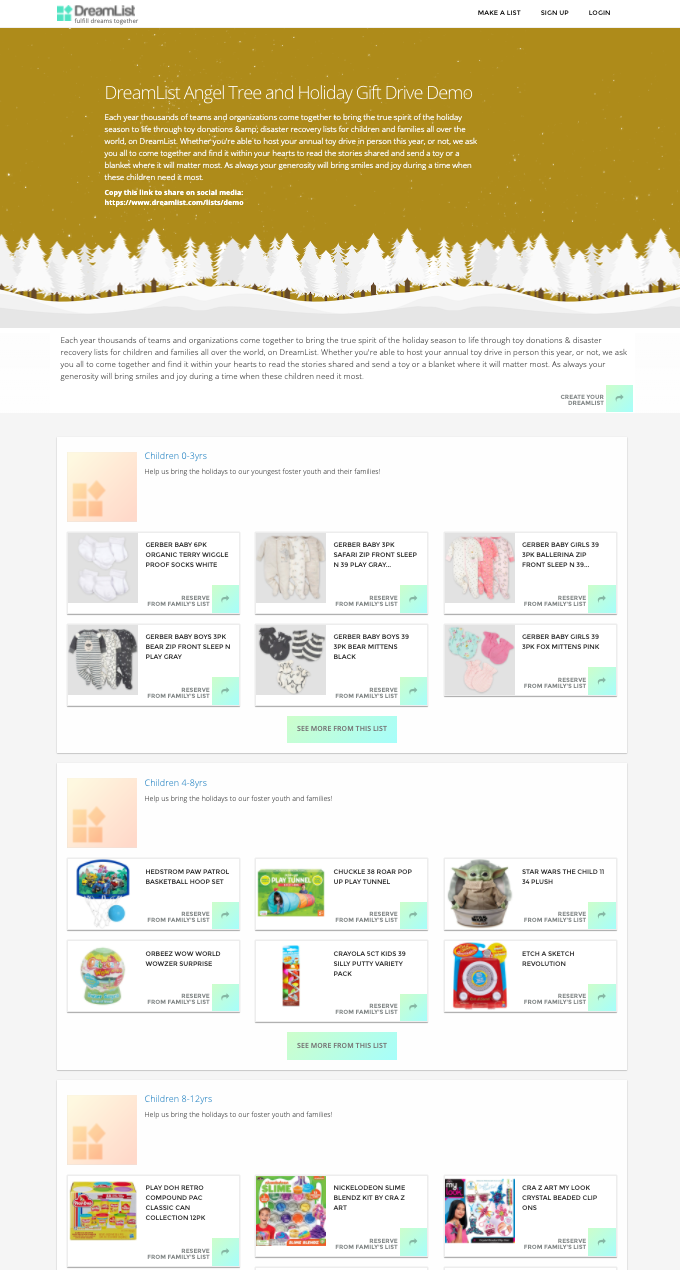
Our demo gift drive. This screenshot is from an earlier version, so buttons look a little different today.
Step 11
Add outside lists to a group or drive
Some lists live elsewhere: an Amazon wish list, a school's registry, a charity's drive. Here's how to bring them into your group:
1
Make a public DreamList called, for example, Outside wishlists.
2
Add each outside list as a Link External Wishlist item: paste its link and add a short note.
3
Add that list to your group, like any other list.
Givers who click it see the outside list and buy there. They can leave you a note on DreamList when they do, and their note appears in your Thank You list. Outside lists stay available on DreamList, because we can't see what's bought on other sites.
Same trick works on a personal list: point your birthday guests at a friend in need.
Step 12
Run a gift drive or angel tree
- Make one public list per family, person or age group. If a team is running the drive, open Edit List, choose Organization, and invite your helpers as co-admins (step 7).
- Add a Gift Tag for each person. Title: who it's for ("Girl, age 8"). Note: gift ideas separated by commas.
- Put your drop-off address in the Shipping Address box and choose After reservation, so only givers who reserve get it, by email. The address fills in on your next tags. Choose After reservation on each one, because every new item starts at On the wish.
- Partner charities with their own wish lists? Add them as outside lists.
- Make a group, add all the lists, and share your www.dreamlist.com/of/… link.
- Watch your Thank You list and mark gifts received as they arrive. Fully reserved lists step off the group page by themselves.
An angel tree without the tree, the tape, or the tag that fell behind the radiator.
Step 13
Organization pages
Running several groups (say, one per school, region or season) and want one home page for all of them, plus links to your outside donation pages? We'll build you an organization page at www.dreamlist.com/org/yourname.
Email org@dreamlist.com with:
- the links to your groups,
- your logo,
- any outside donation links you'd like on the page.
We usually set it up within a day, and it's free.
Step 14
Switching to DreamList from another registry
You don't have to retype a thing. Email import@dreamlist.com with:
- the link to your old registry or wish list, and
- the DreamList list you want the items in.
We move the items for you.
Want to keep the old one running too? Add it to your list as a Link External Wishlist item instead.
Moving day, without the boxes.
Step 15
Bulk changes
Need the same change on lots of items, like a new address on every item, changing visibility, or moving many items to another list? Email support@dreamlist.com with your list's link and the change, and we'll do it for you.
One item at a time is always yours to change, with the edit icon.
Step 16
Memories & extras
Memories
Your Dashboard's Memories tab is a private journal for family moments, milestones and stories. Only you can see it.
- Type an entry and click Save. It's stamped with the date and time.
- Stuck? Click the icon for a new question to get you started.
- To change an entry, click its text, edit, and click away.
- To delete one, clear all its text and click away.
- Use the Search box to find old entries.
Apps for your phone
Our iPhone and Android apps are on the way. Sign up on your Dashboard to hear when they launch: in the Mobile App is on the way! box, click Apple iOS App or Android.
Still stuck?
Email support@dreamlist.com and we'll help.

Achieve Dreams Together
"I wish this page could ... " (send us your thoughts!)
DreamList is the first free, privacy-first, ads-free collaborative online wishlist and registry designed for families by families.Unlike a regular registry, your dream lists can link to any retailer, wish list, registry, experience, activity, or a larger pursuit, so loved ones know what is truly meaningful to you. Then, they can reserve a gift or contribute a partial ammount towards your bigger dreams and bring them closer to reality with every special occasion. Manage dream lists in private or as a team. Create pages previewing multiple wish lists with one link for grandparents, gift drives, or organizations. Share one link with family, that they can refer back to for every special occasion, for life!
Foundations, charitable organizations, schools, and disaster recovery teams also use DreamList to direct goodwill to hundreds of families at scale since Hurricane Harvey, also for free.
We are successful only when you are, and that makes all the difference!
Baby Registry to Christmas List Maker
- Christmas Wish List
- Wedding Registry
- Baby Registry
- Family List
- Shopping List
- Wishlist app for Superheroes
- Housewarming Registry
- Wish list and Donation Registry for Charities, Non-Profits, and Organizations
- Graduation Registry and Wish List
- Universal Wishlist
- Birthday List and Registry
- Operation Santa
- How to Run a Toy Drive
- Virtual Giving Tree
Blog
- Christmas Wish List Ideas
- Private Baby Registry
- Online Wishlist That Makes Thoughtful Gifts Easy
- Birthday and Christmas Gifts for a 2 year old
Wish List & Gifts for the hard to shop for
Quick Links
- Back to Top
- <- (drag this link to bookmarks)
- Frequently Asked Questions
- Frequently Asked Questions For Givers
- How to Use DreamList
- Guide for Givers
- About Us
- My Wishlist
- Wishlist App
- Privacy
- Terms
- Jobs
Other Family Products
Contact Us
- support@dreamlist.com Love DreamList? Spread it!
Copyright © 2026 DreamList.com. A property of DoerHub, Inc. All Rights Reserved.